
Connect Bifrost Wallet via WalletConnect
Use this guide to connect your Bifrost Wallet to the Prisma dashboard using WalletConnect. This allows you to view your portfolio and sign transactions directly from your mobile wallet.
Prerequisites
- You have the Bifrost Wallet app installed on your mobile device.
- Your Bifrost Wallet has a Flare or Songbird account set up.
- You are on a desktop browser with the Prisma dashboard open.
1
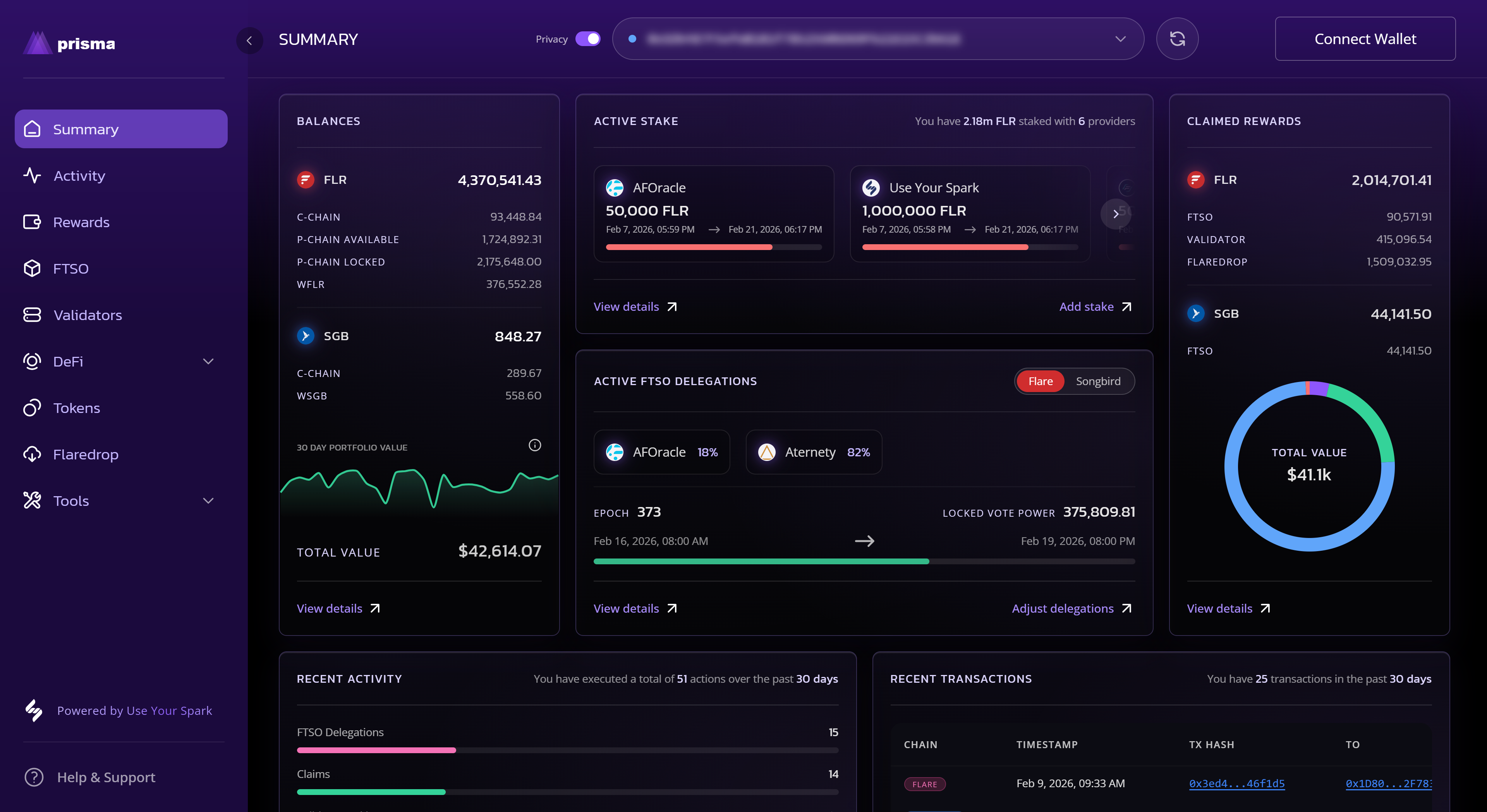
Open the Connect Wallet modal
- On the Prisma dashboard, click Connect Wallet in the top-right corner.
- The Connect Wallet modal will appear, showing available wallet options.
2
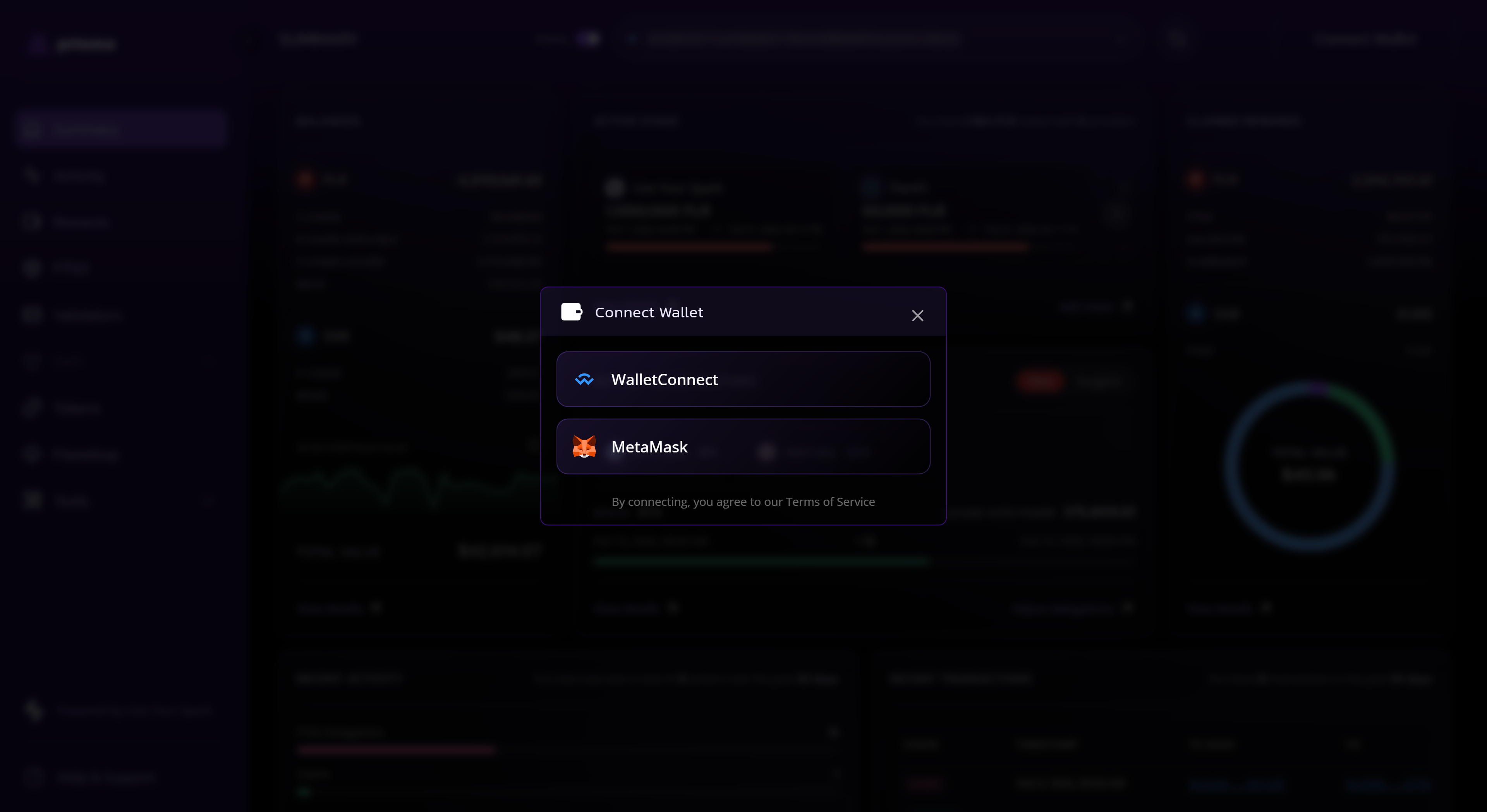
Select WalletConnect
- In the modal, select WalletConnect.
3
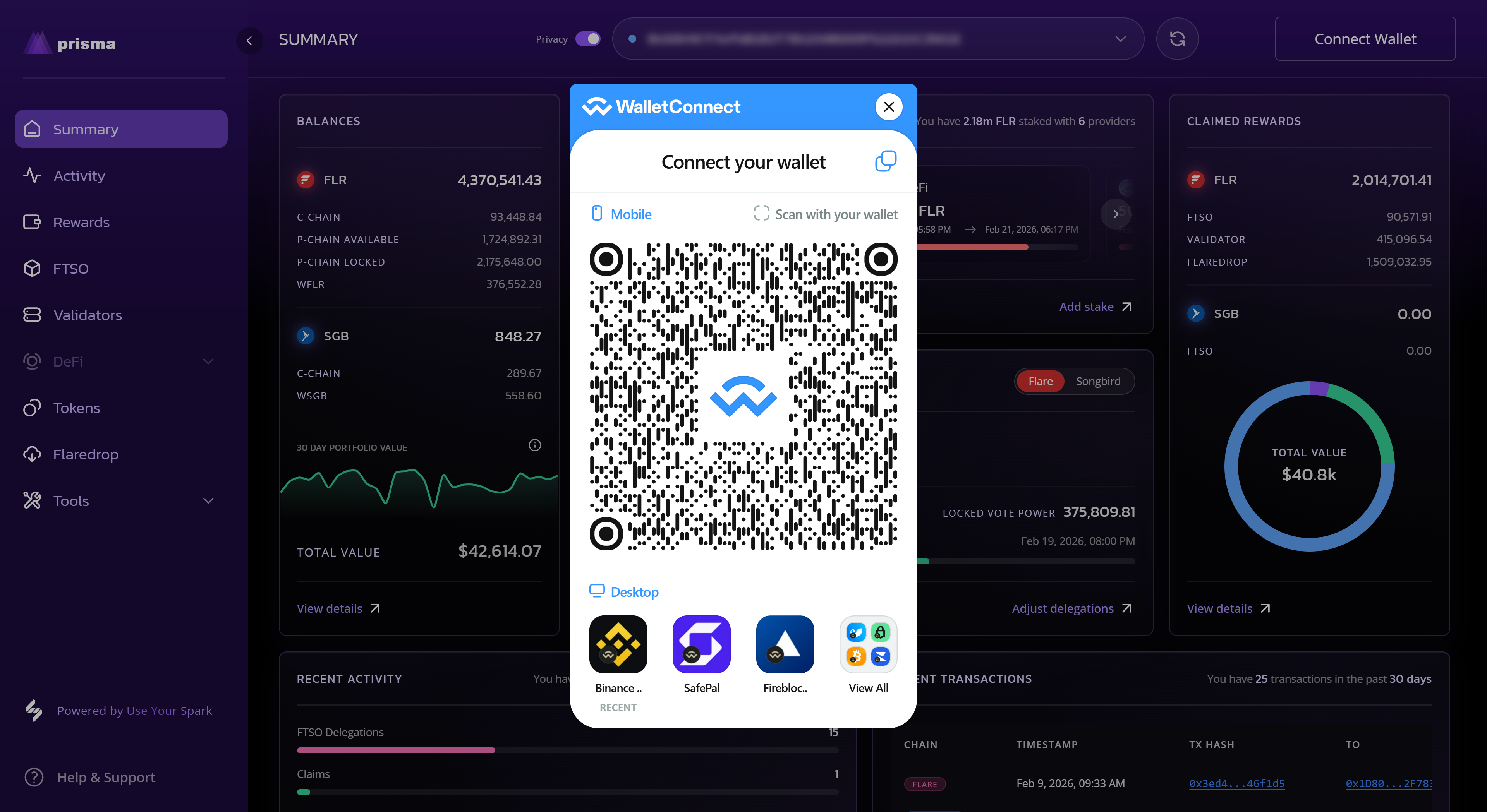
QR code is displayed
- A WalletConnect QR code will appear on screen.
- Keep this screen open — you will scan it with your Bifrost Wallet app.
4
Open WalletConnect in Bifrost and scan the QR code
- On your mobile device, open the Bifrost Wallet app.
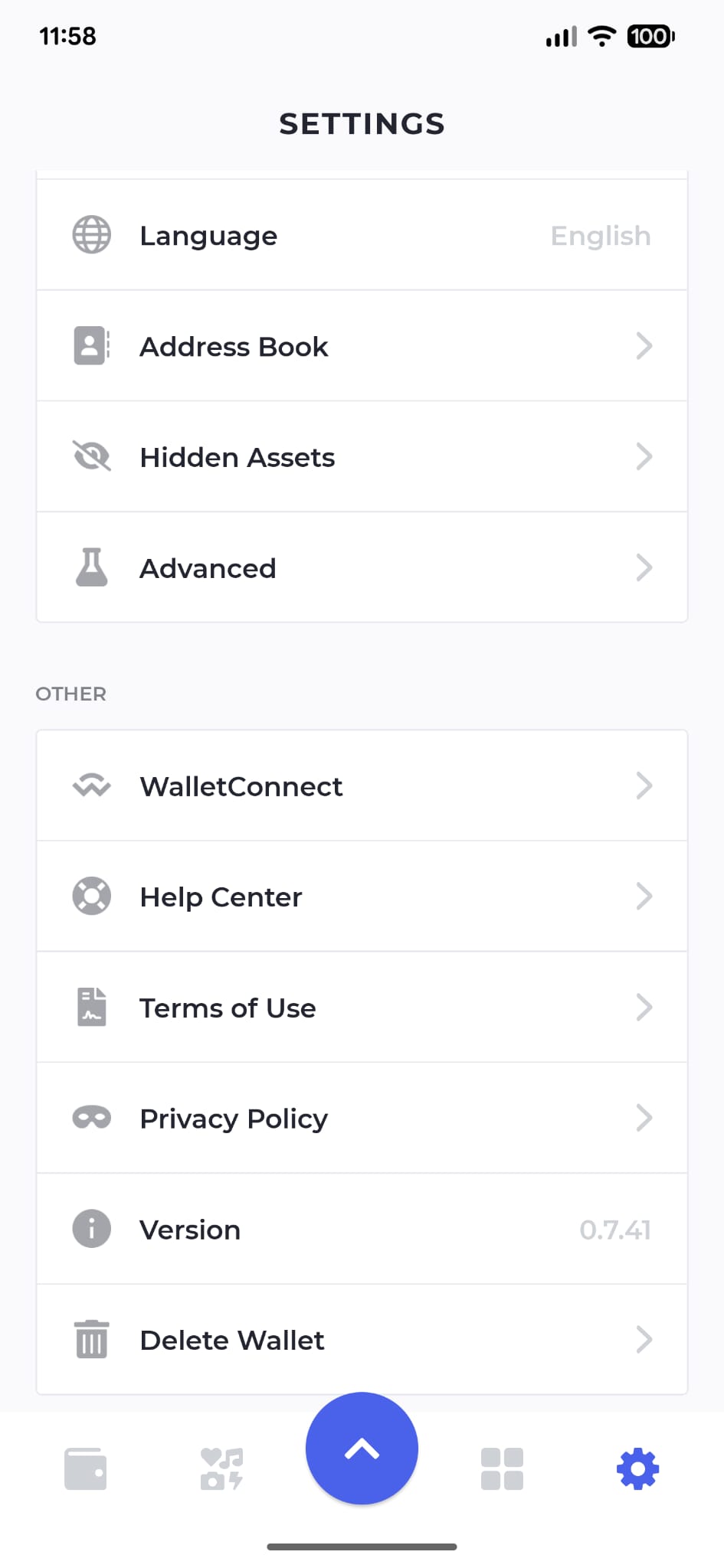
- Navigate to Settings (gear icon, bottom-right).
- Under the Other section, tap WalletConnect.
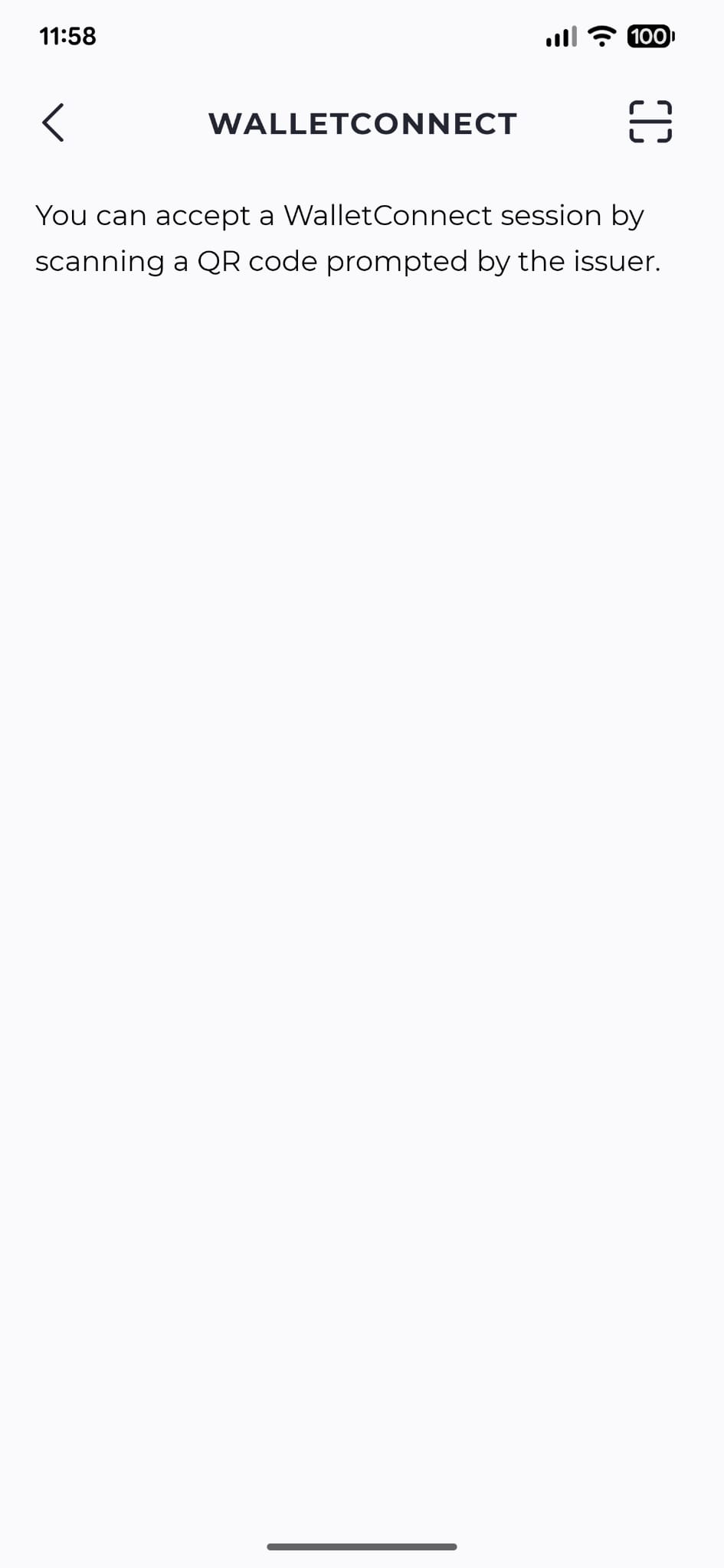
- Tap the scan icon (top-right corner) and point your camera at the QR code on your desktop.
5
Approve the connection
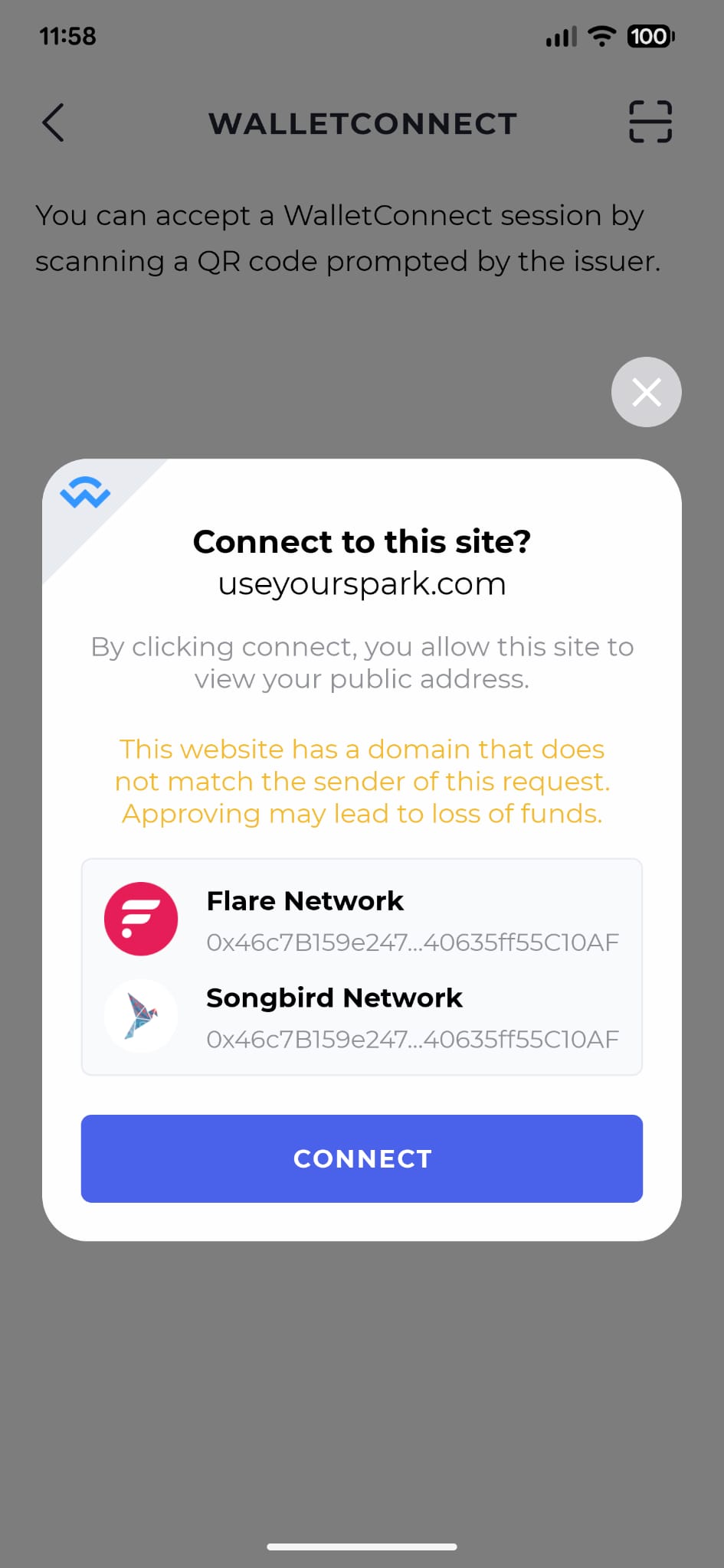
- Bifrost will show a connection request from useyourspark.com.
- Your Flare and Songbird accounts will be listed.
- Tap Connect to approve.
6
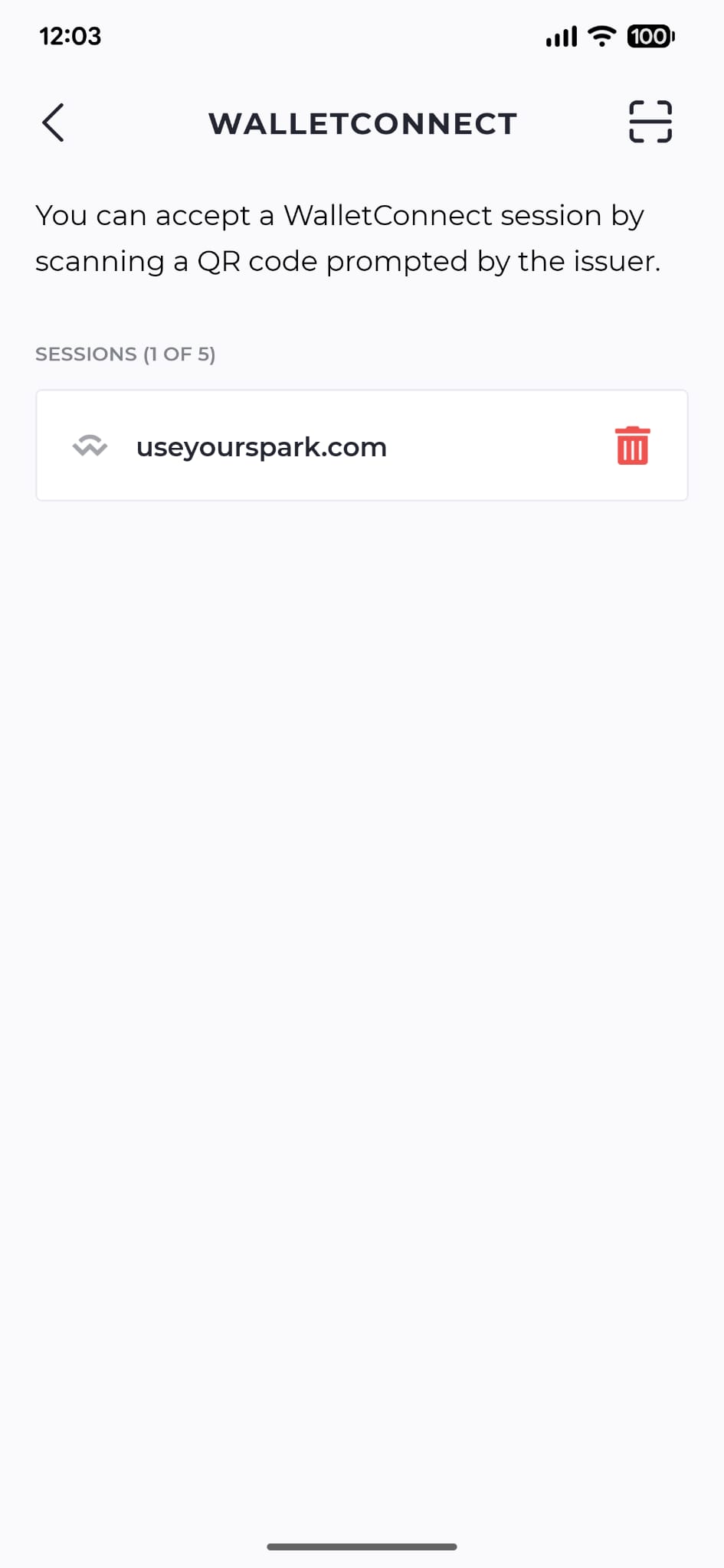
Connection confirmed
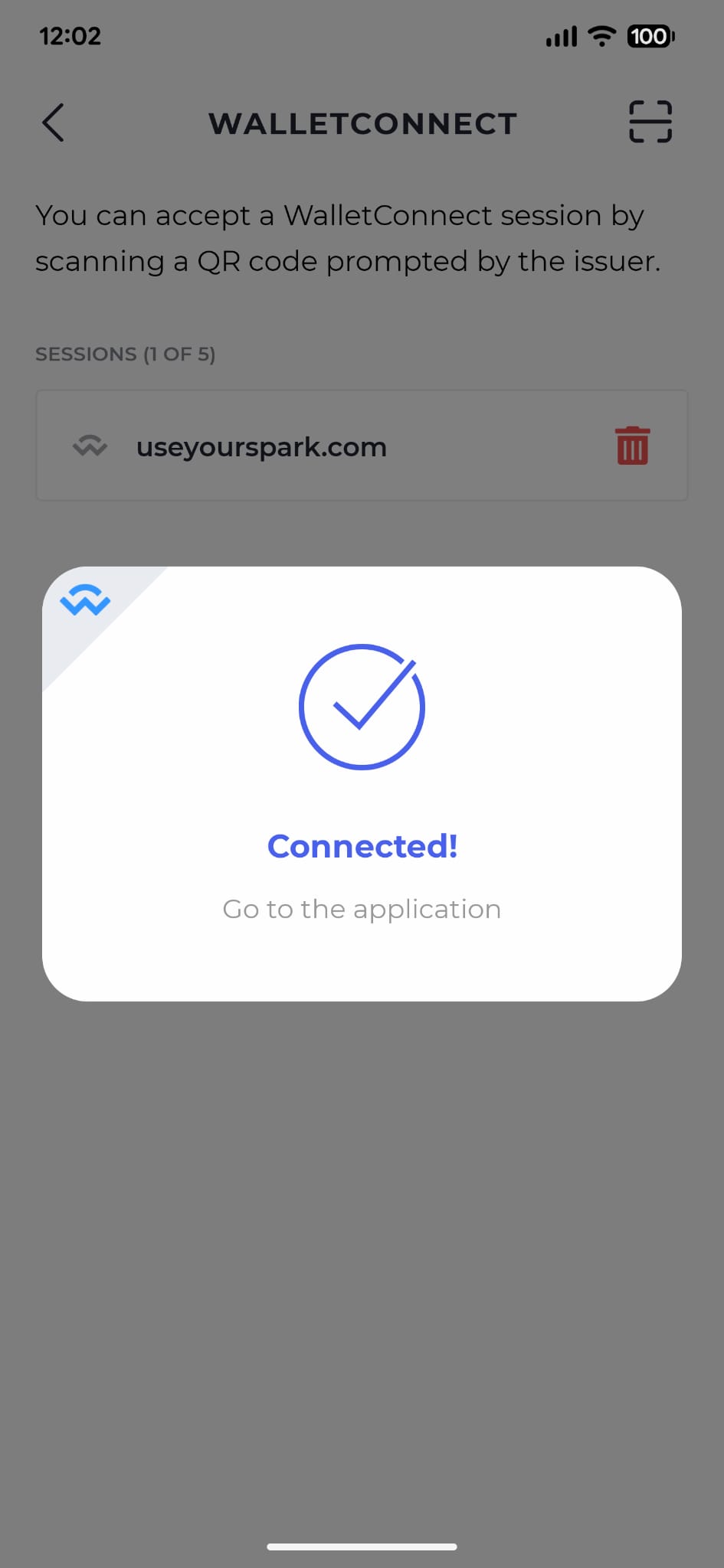
- Bifrost will show a Connected! confirmation screen and list useyourspark.com as an active session.
- You can disconnect at any time by tapping the trash icon next to the session.
7
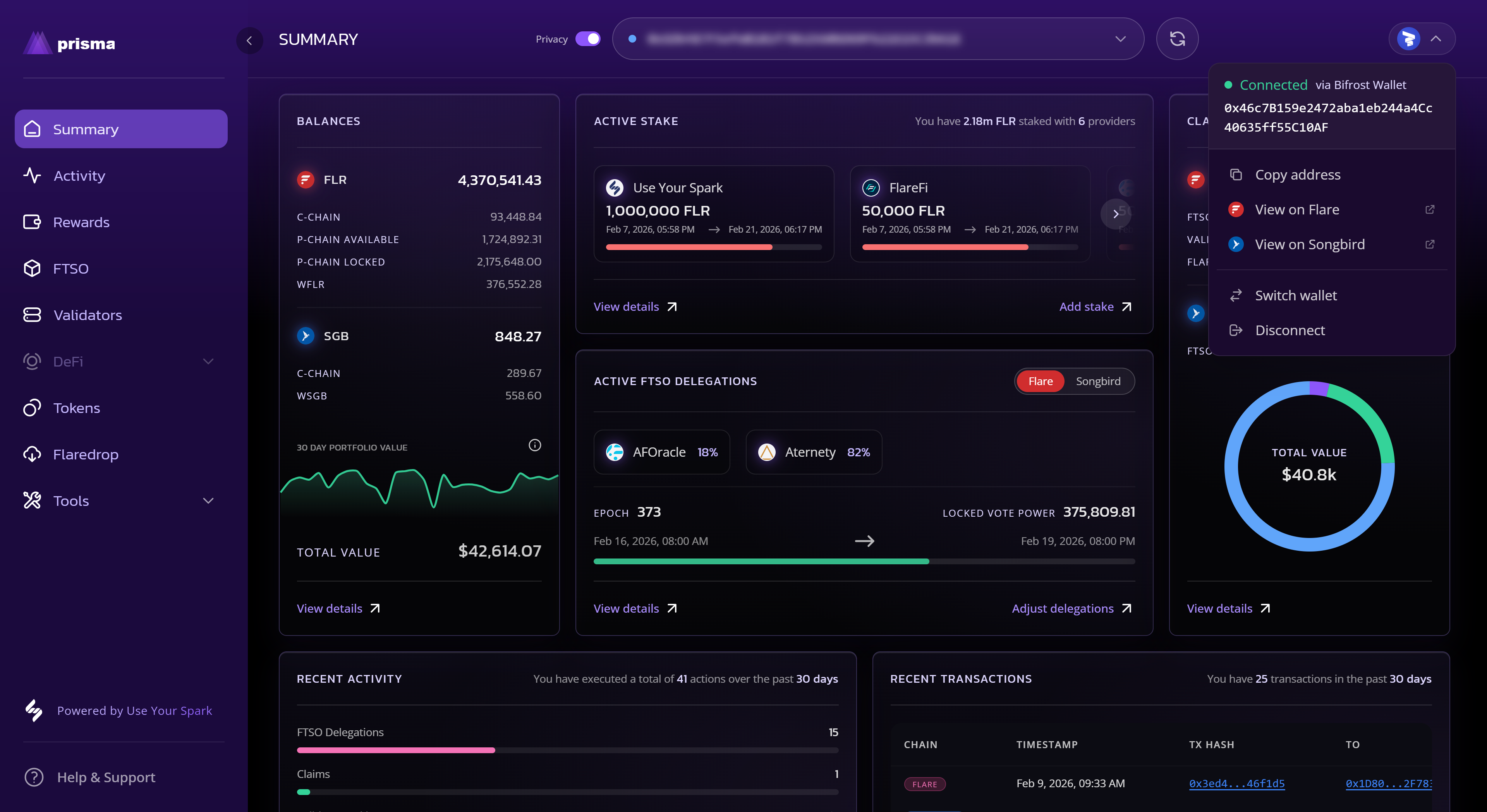
Wallet connected in dashboard
- Back on the desktop, your wallet icon will appear in the top-right corner of the navbar, showing Connected via Bifrost Wallet.
- Click the icon to view your address and manage the connection.
8
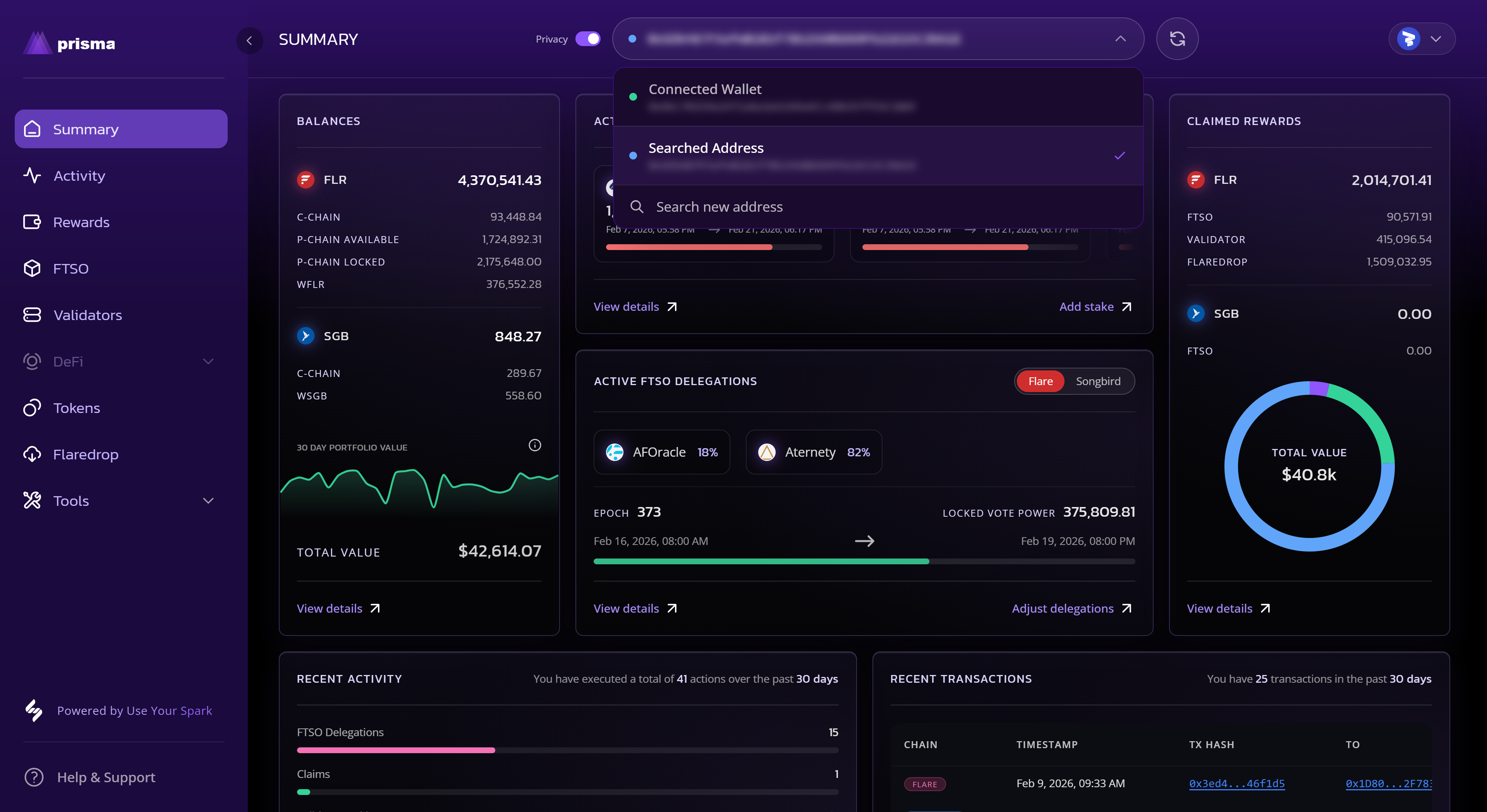
Switch between addresses
- If you previously searched another address, the address bar dropdown lets you switch between your Connected Wallet and any Searched Address.
- Select your connected wallet address to view your own portfolio.
What to expect
- Your connected wallet address will be used to load your portfolio data automatically.
- Transactions initiated in the dashboard (such as staking or delegating) will prompt an approval in your Bifrost Wallet app.
- To disconnect, click your wallet icon in the navbar and select Disconnect, or remove the session from within Bifrost.